YouTube Issues

Please note, we are aware of an issue with the videos and are looking at solutions for this. In the mean time, please be aware that you need to have a YouTube account and be signed in to YouTube to watch the videos

Accessibility Statement
Contents

1.0 Introduction

2.0 Registering to Use the EHCP Portal

3.0 Initial Login and Setup

4.0 Logging in to the EHCP Portal

5.0 Using the EHCP Portal

6.0 Logging Off

7.0 Support

1.0 Introduction

The EHCP Portal is a system whereby EHC Plans, forms, letters and other information relating to EHCP’s can be sent to Parents of, Carers of, and Young People with EHCP’s. The Portal enables users to view documents shared by the EHCP Team and check for any EHCP-related actions they may need to complete and return online. All individuals with parental responsibility for a Young Person with an EHCP and those Young People over the age of 16 who have an EHCP themselves will be invited to register to use the Portal. This guide outlines the necessary steps for you to register for and use the EHCP Portal.

2.0 Registering to Use the EHCP Portal

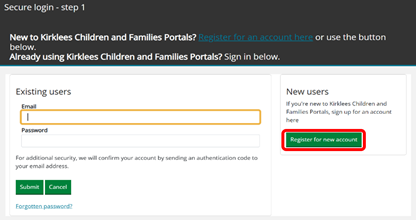
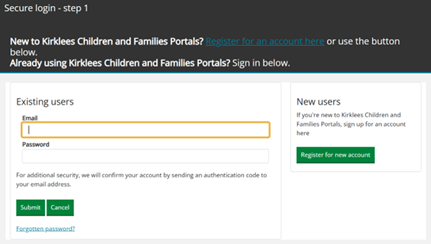
Eligible potential EHCP Portal users will be invited by email to register to use the Portal. You will receive an email from the EHCP Team containing further instructions and a unique code, this is used to confirm registration. This code is valid for 90 days from when the invitation email was sent. Your allocated Caseworker will contact your for your unique code. Once your registration has been verified, you will receive a notification via email containing a link to the Secure Log-in screen. Select the ‘Register for New Account’ button (below)

Registering for a new Portal account is a three-step process.

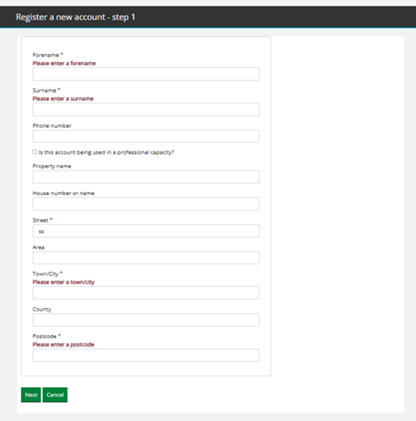
Step 1 requires you to add your name and address. Select ‘Next’.

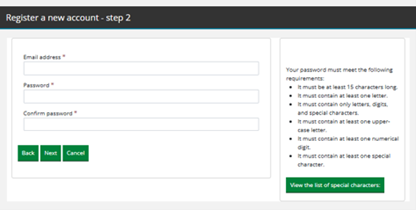
Step 2 asks you to add an email address and a password. The password must meet the following requirements;

  • Be at least 15 characters long.
  • Contain at least one letter.
  • Contain only letters, digits and special characters.
  • Contain at least one upper case letter.
  • Contain at least one numerical digit.
  • Contain at least one special character.

When the password has been entered and confirmed, select ‘Next’.

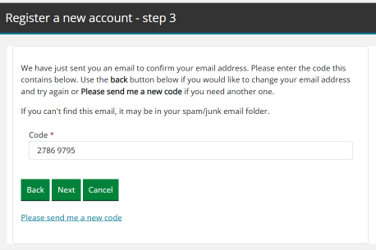
Step 3 You will receive an email containing an 8-digit code. Copy and paste this code into the Code field and select ‘Next’ to open the Login screen.

3.0 Initial Login and Setup

To login enter the email address and password previously associated with the account and select ‘Submit’.

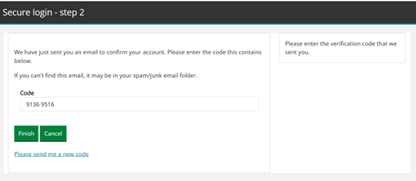
You will receive an email containing an eight-digit code. Copy and paste this code into the Code field and select ‘Finish’.

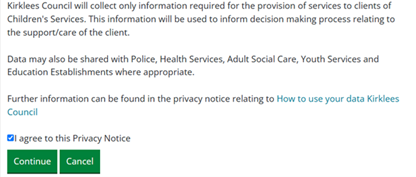
The first time you login to the EHCP Portal you will be required to agree to the Privacy Notice to continue (below)

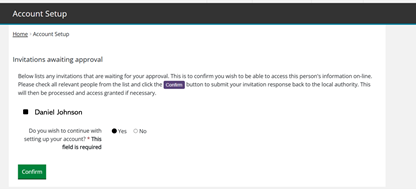
Once your account has been activated by the EHCP Team you will receive an email containing an invitation to access the portal itself.  This email will contain a link which should be used to open the Account Setup screen. From here you will be asked to confirm you wish to access a specific child’s details via the Portal. 

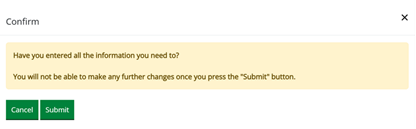
Additionally, you will also be asked to confirm you wish to continue with setting up the account (below).

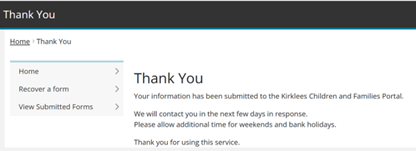
A Thank You screen will display (below). 

Once the submitted details have been verified by the EHCP Team a further email will be sent to you confirming the account has been created.  This email will contain a link to log on to the EHCP Portal.

4.0 Logging in to the EHCP Portal

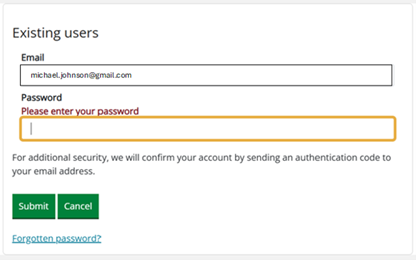
Use the provided link to open the secure EHCP Portal log-in screen (below).

Type in the email address you have already associated with the account and the password you have previously chosen.   Select ‘Submit’.

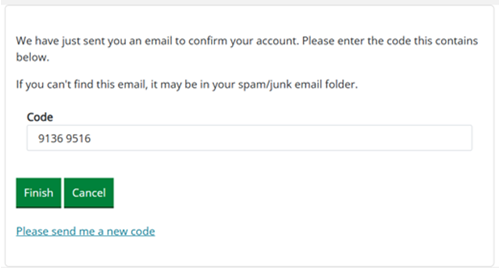
When the correct email address and password have been submitted you will be sent a code via email.  Enter this 8-digit code onto screen which will appear and select ‘Finish’ (below).


5.0 Using the EHCP Portal

Upon logging in you will be able to view the EHCP Dashboard relating to the child (below). 
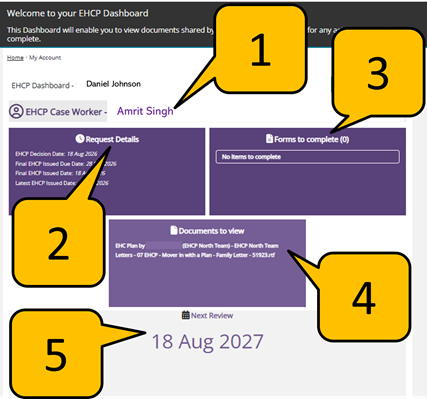
The Dashboard comprises 5 sections

  • EHCP Case Worker
  • Request Details
  • Forms to Complete
  • Documents to View
  • Next Review Date

Selecting the sections may reveal further details which are outlined below.

5.1 EHCP Case Worker

Where appointed, the EHCP Case Worker’s name will display. Where a Case Worker has yet to be appointed, ‘Worker details not configured’ will show.

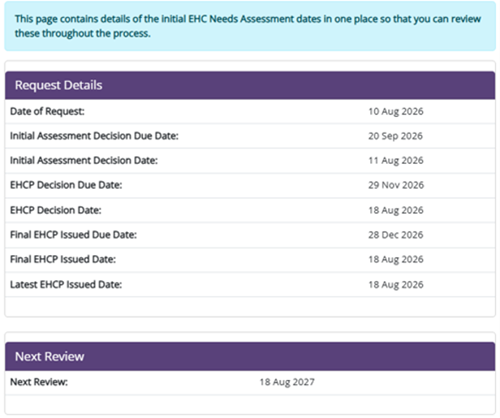
5.2 Request Details 

This section displays Key Dates relating to the EHCP.
5.3 Forms to complete

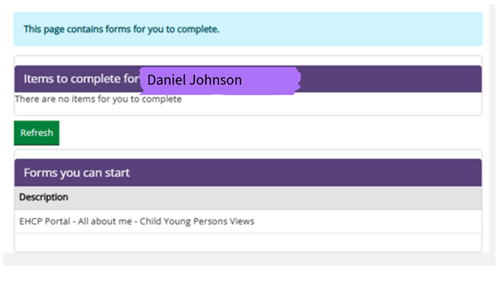
Any forms requiring starting or completion will show in this section. 

You will also receive an email notification when there is a new task for you to undertake.
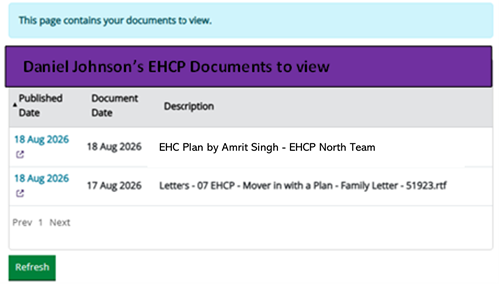
5.4 Documents to View

This section shows any completed EHCP documents which are available to view.

You will receive notification by email whenever a new document is uploaded to this section.

Clicking on any document opens a PDF which may be printed or downloaded.
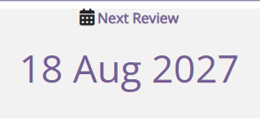
5.5 Next Review Date 

The date when the next EHCP review is due is displayed.
 

6.0 Logout of the EHCP Portal

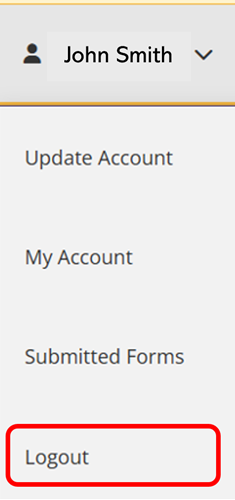
When you have completed your EHCP Portal session log off by selecting

the arrow next to your name and choosing ‘Logout’ (below).

7.0 Support

For further support and guidance in using the portal please contact ehcp.portalsupport@kirklees.gov.uk

If after registering your email address changes, please contact ehcp.team@kirklees.gov.uk

en-GB
Last updated: 15/10/2026